How do I log in to access my courses?
Please make sure you are attempting to login to access your courses using the email address used to register for your courses.
If you're having issues logging in to access your courses, please use the following information to assist you:
Accessing Your Learner Home
To log in and access your courses, you will want to follow these steps:
- Navigate to our home page.
From here, you will navigate to the Login menu, and select the Learner Home sub-menu.
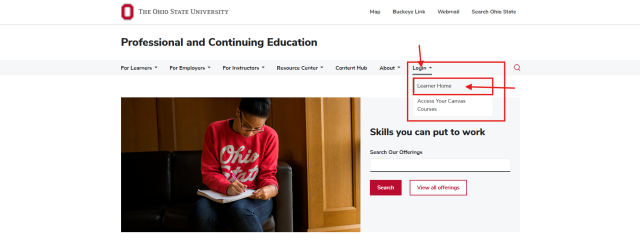
- This will take you to a page with several login options. Please use the options below for instructions on how to sign-in to your Learner Home page using the email option that matches your email used at registration/account creation.
Choosing a Login Option
OSU/OSUMC/COTC Sign-in
Learners who registered for a course using an OSU/OSUMC/COTC email address:
Learners will want to select the button labeled "Ohio State, OSUMC, or COTC sign-in" and log in using their corresponding email credentials.
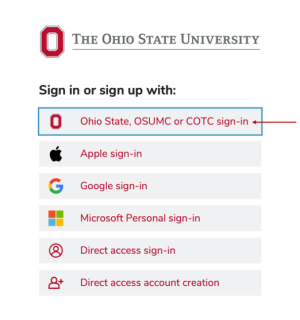
Once signed in, learners will be directed to their Canvas homepage.
- Learners will see courses that they’re enrolled into on their homepage within Canvas once the page loads.
- Learners will then be able to click on their course from their homepage portal and access their course content!
Please Note:
Learners will want to make sure to login to access their courses in this way every time.
Apple Sign-in
Learners who registered for a course using an Apple/iCloud/me.com email address:
Learners will want to select the button labeled "Apple Sign-in" and log in using their corresponding email credentials.
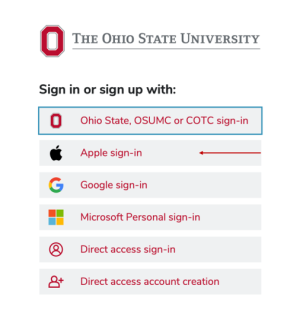
Once signed in, learners will be directed to their Canvas homepage.
- Learners will see courses that they’re enrolled into on their homepage within Canvas once the page loads.
- Learners will then be able to click on their course from their homepage portal and access their course content!
Please Note:
Learners will want to make sure to login to access their courses in this way every time.
Google/Gmail Sign-in
Learners who registered for a course using a Google/Gmail email address:
Learners will want to select the button labeled "Google Sign-in" and log in using their corresponding email credentials.
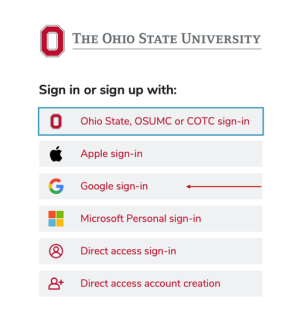
Once signed in, learners will be directed to their Canvas homepage.
- Learners will see courses that they’re enrolled into on their homepage within Canvas once the page loads.
- Learners will then be able to click on their course from their homepage portal and access their course content!
Please Note:
Learners will want to make sure to login to access their courses in this way every time.
Microsoft/Hotmail/Outlook Sign-in
Learners who registered for a course using a Microsoft/Outlook/Hotmail email address:
Learners will want to select the button labeled "Microsoft Personal sign-in" and log in using their corresponding email credentials.
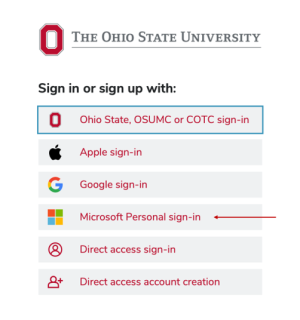
Once signed in, learners will be directed to their Canvas homepage.
- Learners will see courses that they’re enrolled into on their homepage within Canvas once the page loads.
- Learners will then be able to click on their course from their homepage portal and access their course content!
Please Note:
Learners will want to make sure to login to access their courses in this way every time.
Direct access Sign-In
Learners that registered for a course using any other email domain not included above:
Learners will want to select the button labeled "Direct access sign-in" and log in following the on-screen prompts to verify their email address.
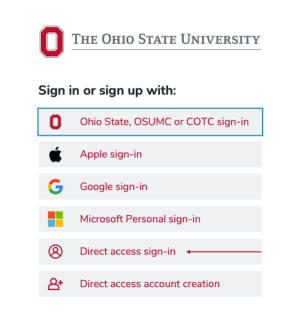
Once signed in, learners will be directed to their Canvas homepage.
- Learners will see courses that they’re enrolled into on their homepage within Canvas once the page loads.
- Learners will then be able to click on their course from their homepage portal and access their course content!
Please Note:
- Learners will want to make sure to login to access their courses in this way every time.
- If this is the first time logging in to access a course, learners may need to first use the bottom button that states "Direct access account creation" to create their account.
- After the first initial login and account creation, learners will then use "Direct Access Sign-in" for all their future logins.
- After signing in you will be taken to your Learner Home page. Once on your Learner home page, you can scroll down to see your Current Courses. This section includes colored indicators of the status of your course, informing you if your course is available, not available, or has already ended.
Under each listed course, there will be a link to access your course with the colored status indicator for the course located to the left of the course access link.
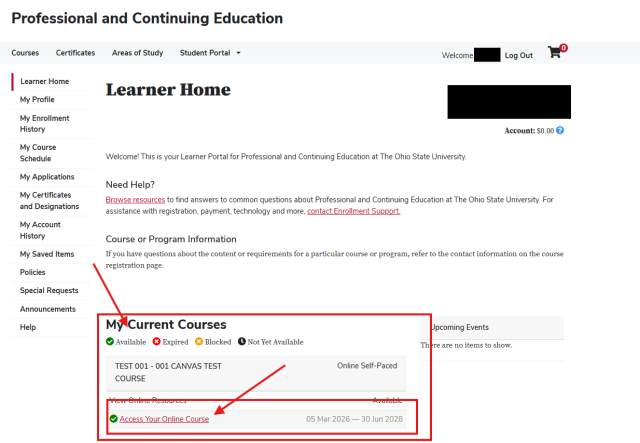
You will be directed to the Access Your Courses page. Select the red course login button toward the top of the page.
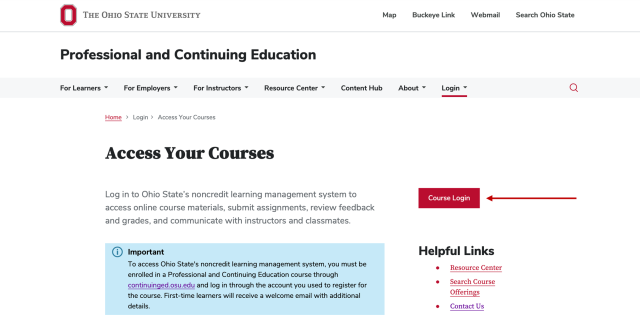
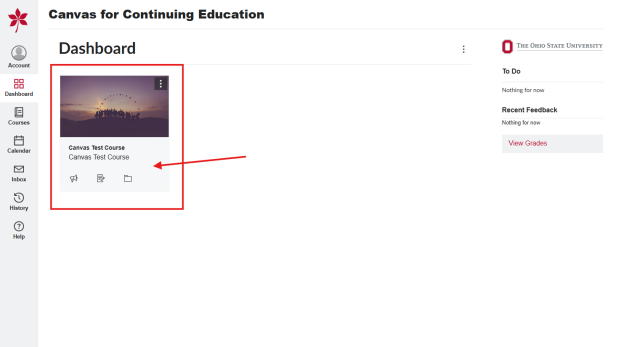
- After clicking Course login, you will be automatically logged in to your Canvas dashboard. All eligible and currently enrolled courses will be shown on your Canvas dashboard. You can then access your course materials by clicking on the course you would like to access.
Please note:
It may take up to an hour for a course to appear on your Canvas dashboard after registration. If more than an hour has passed and your course still isn't visible on your Canvas dashboard, please reach out to continuinged@osu.edu for assistance.